Shipment Search & Filters
Search a Shipment
You can quickly find specific shipments using the Search bar on the Manage Shipments > Shipments page. The search supports multiple shipment attributes, including:
- Shipment reference number
- Invoice number
- Sender name
- Receiver name
- Tracking number
- Other shipment related identifiers
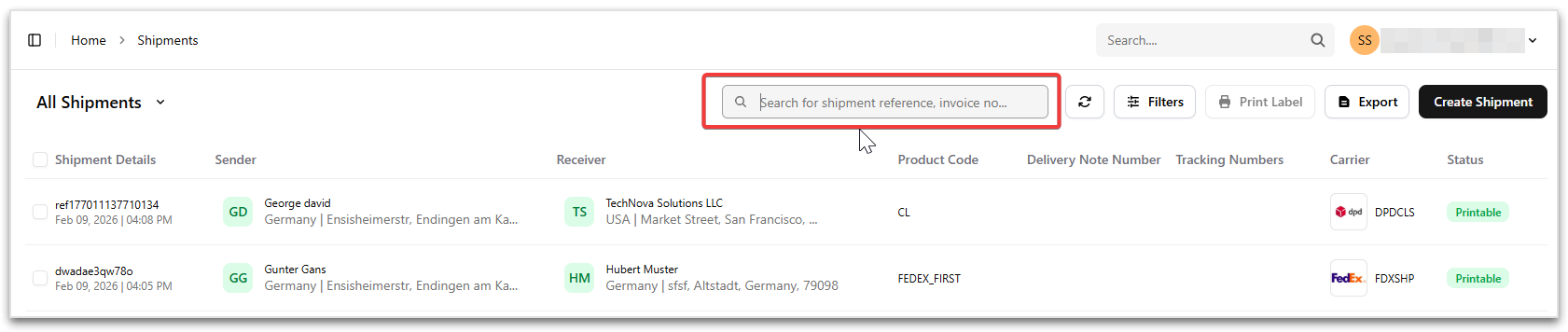
As you type, the shipments list updates to display matching results, helping you locate shipments without applying filters.
Shipment Filters
The Filters panel helps you quickly narrow down the shipments list and find exactly what you’re looking for, whether it’s based on date, status, carrier, or other shipment attributes. This is especially useful when you’re dealing with a high volume of shipments.
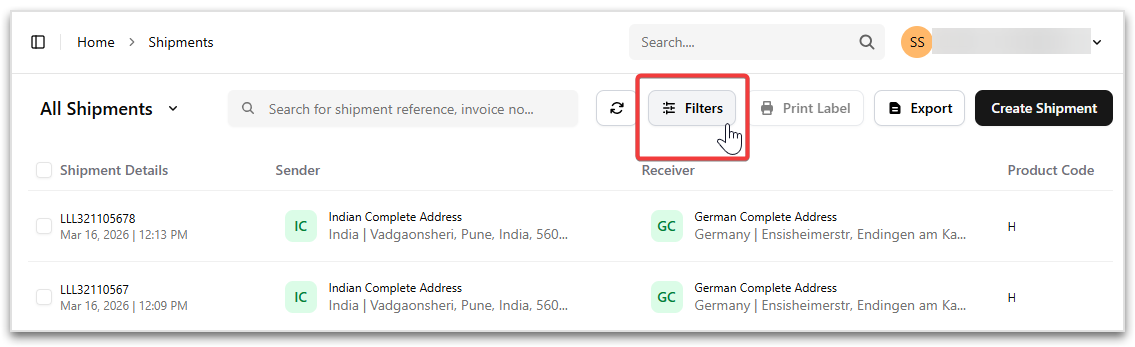
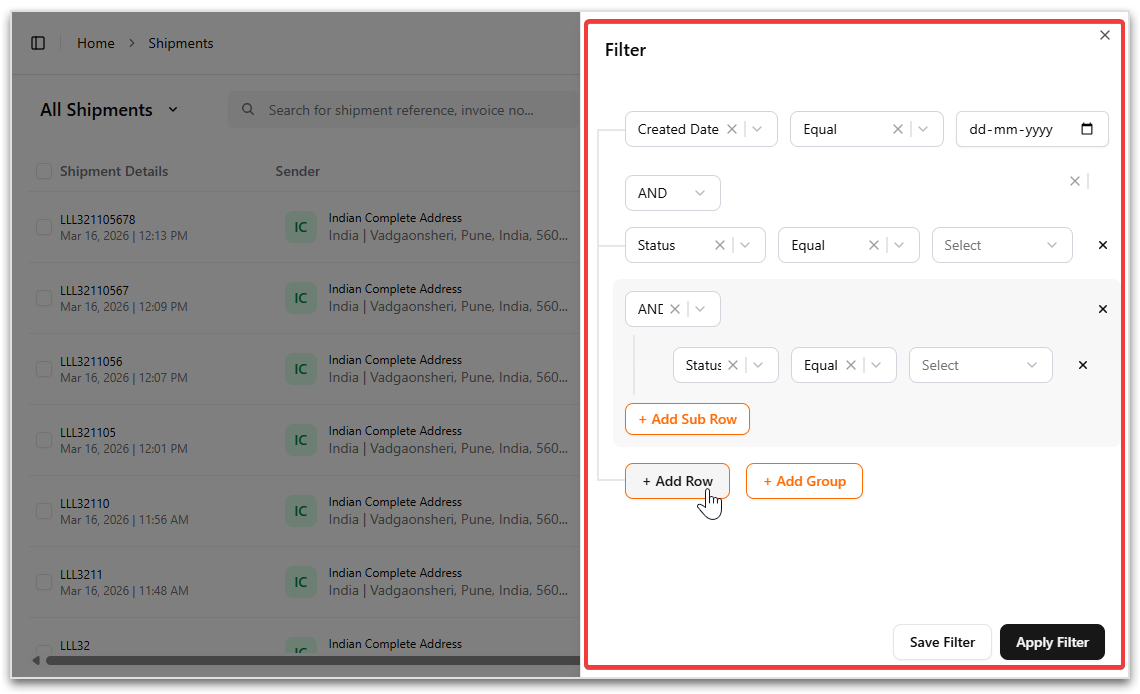
To access the Filters:
- Navigate to Shipments from the main menu.
- Click Filters on the top-right of the shipments list.
- A side panel opens where you can define filter conditions.
- Select Add Row to include additional filters.
- Select Add Group to add a set of filters.
- Click Save Filter to store the filter configuration for later use.
- Click Apply Filter to filter the shipments list immediately.
Filter Components
Each filter row consists of three parts:
Field
The Field dropdown specifies which shipment attribute you want to filter by. Examples include:
- Status
- Created Date
- Order Number
- Shipment Reference
- etc.
Operator
The Operator determines how the field should be evaluated. Common operators include:
- Equal – matches an exact value
- Not Equal – excludes a specific value
- Data - contains a specific data
- No Data - excludes a specific data
- Contain – finds partial matches that icludes input value
- Not Contain - finds partials matches that excludes input value
Value
The Value field is where you enter or select the value you want to filter by. For example:
- A specific shipment status
- A date
- A tracking number
- A carrier name
Managing Filter Rows
The filter panel includes several options to help you build your filter conditions:
- Add Row – Adds a new filter condition.
- Add Sub Row – Adds a condition inside an existing group.
- Add Group – Creates a grouped set of conditions.
- Remove (×) – Deletes a filter row or group.
Combining Multiple Conditions
Filters can be combined using logical operators to create more advanced search conditions.
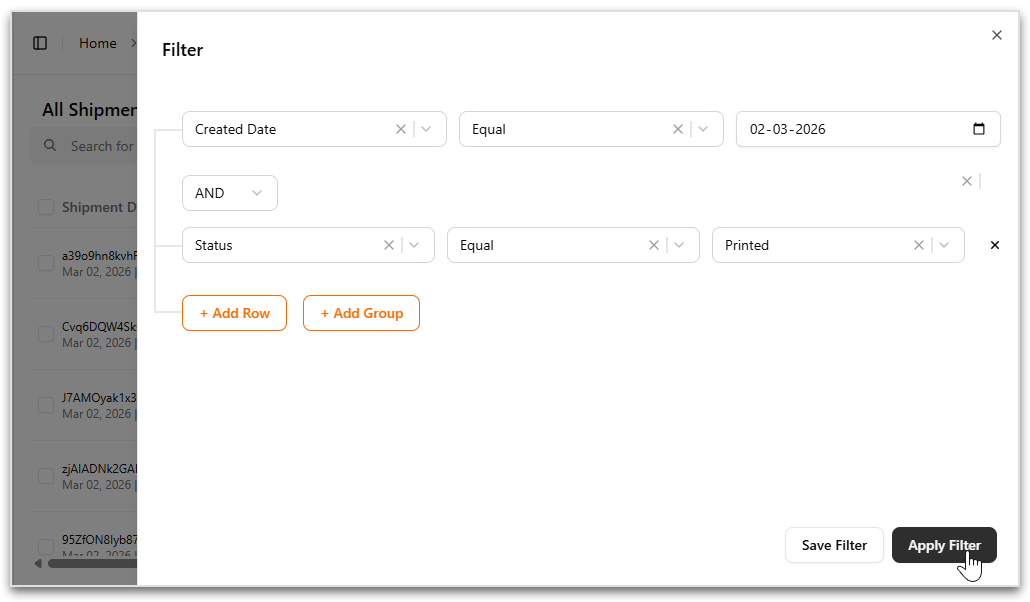
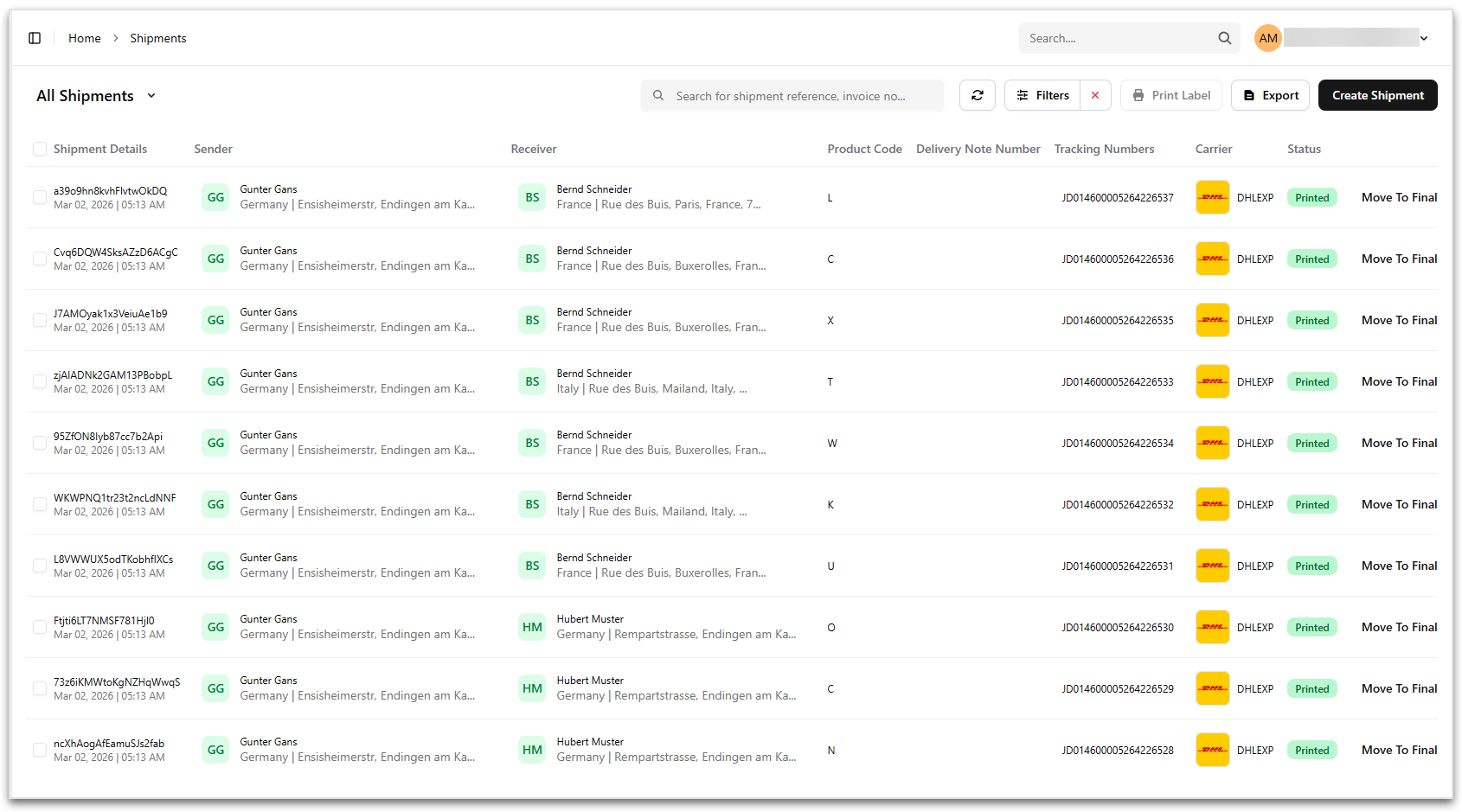
AND: All conditions must be satisfied.
Example:
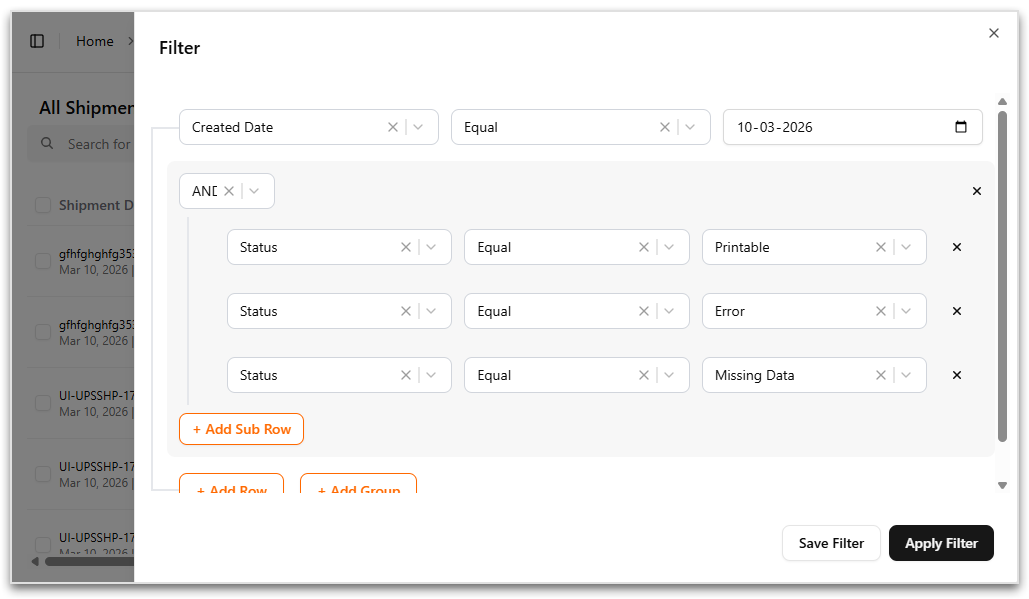
Status = Printable AND Created Date = 02-03-2026
This returns shipments that are Printable and were created on the specified date.
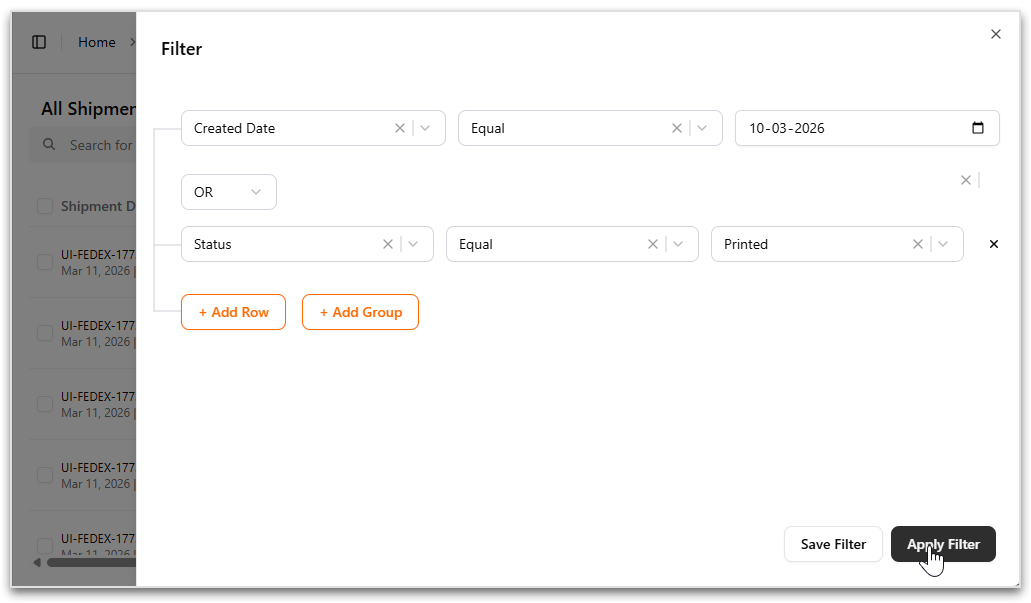
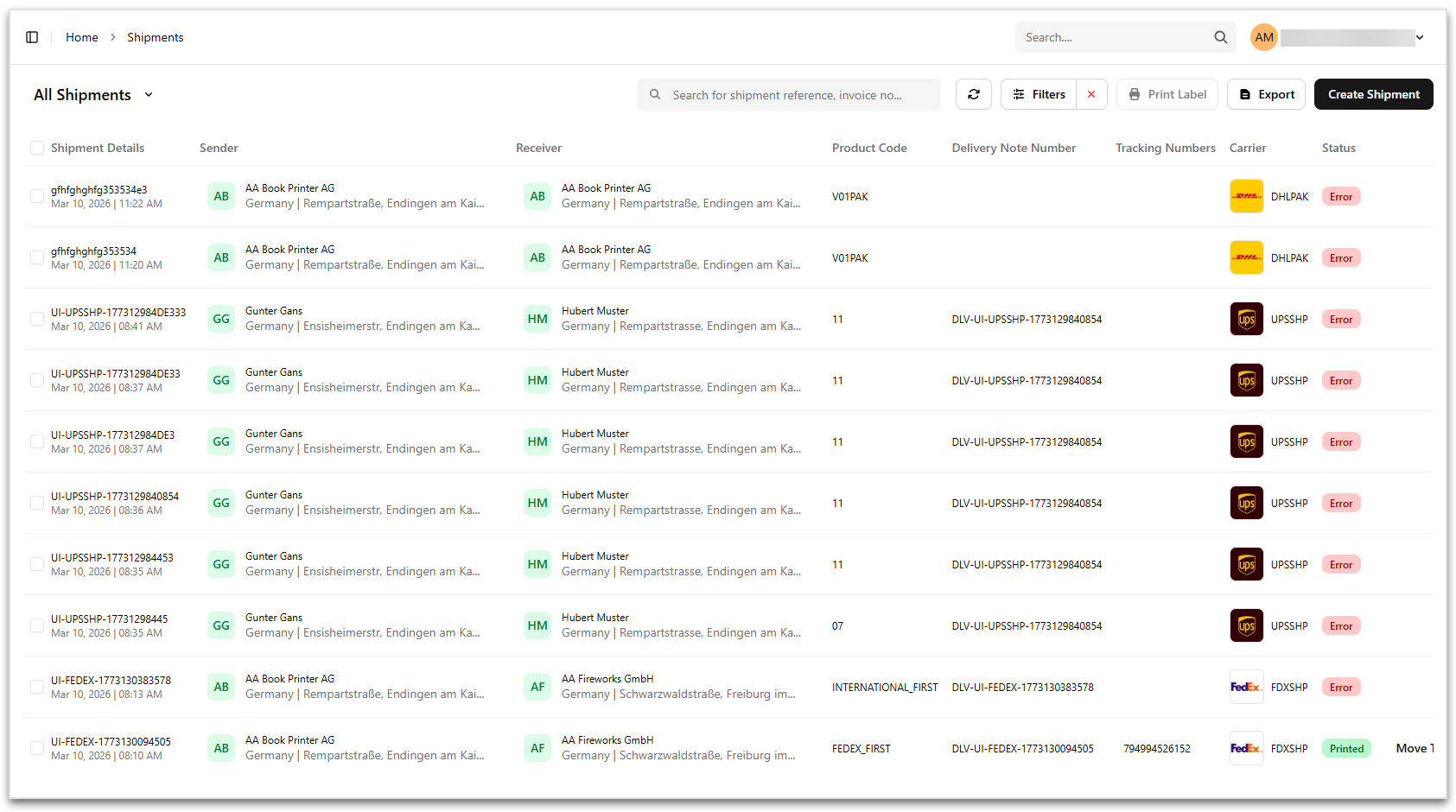
OR: Either one of the conditions must be satisfied
This returns shipments that are Printable or were created on the specified date.
Example:
Status = Printable OR Created Date = 02-03-2026
Using Filter Groups
Filter groups allow you to combine multiple conditions together for more complex filtering.