View Shipments
Overview
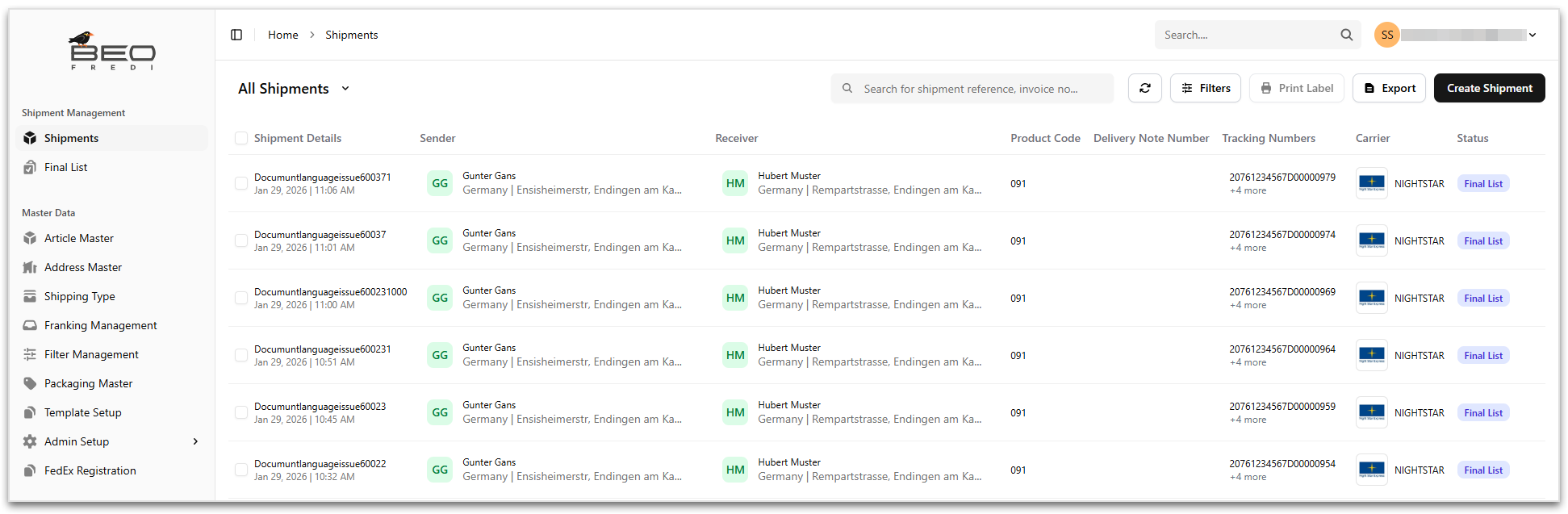
The Shipments page provides a centralized view of all shipments created in the system. It allows to search, filter, and perform actions on shipments such as label printing, finalization, etc.
Access Method
To view the shipments list:
- Navigate to Shipment Management > Shipments
- The All Shipments page opens by default
Shipments Page Layout
The page displays shipments in a tabular list view, with key shipment details and available actions shown for each shipment. Each row in the list represents a single shipment.
| Column | Description |
|---|---|
| Shipment Details | Displays the shipment reference along with creation date and time. |
| Sender | Displays sender name and pickup address. |
| Receiver | Displays receiver name and delivery address. |
| Product Code | Displays the selected carrier product or service. |
| Delivery Note Number | Displays the delivery note reference. |
| Tracking Number | Displays the carrier tracking number(s). |
| Carrier | Displays the carrier name. |
| Status | Displays the current shipment status. This column also shows context-specific actions for the shipment. |
The Shipments page header provides below actions:
| Action | Description |
|---|---|
| Search | Search shipments by shipment reference, invoice number, or order number. |
| Filters | Apply filters to narrow down shipments by status, carrier, or other criteria. |
| Print Label | Print labels for selected shipments. |
| Export | Export shipment data. Click the Export action from the header actions to download the shipment data into the local system. Data is downloaded as .xlsx file. |
| Create Shipment | Create a new shipment (See (Create Shipment)) |
Shipment Views
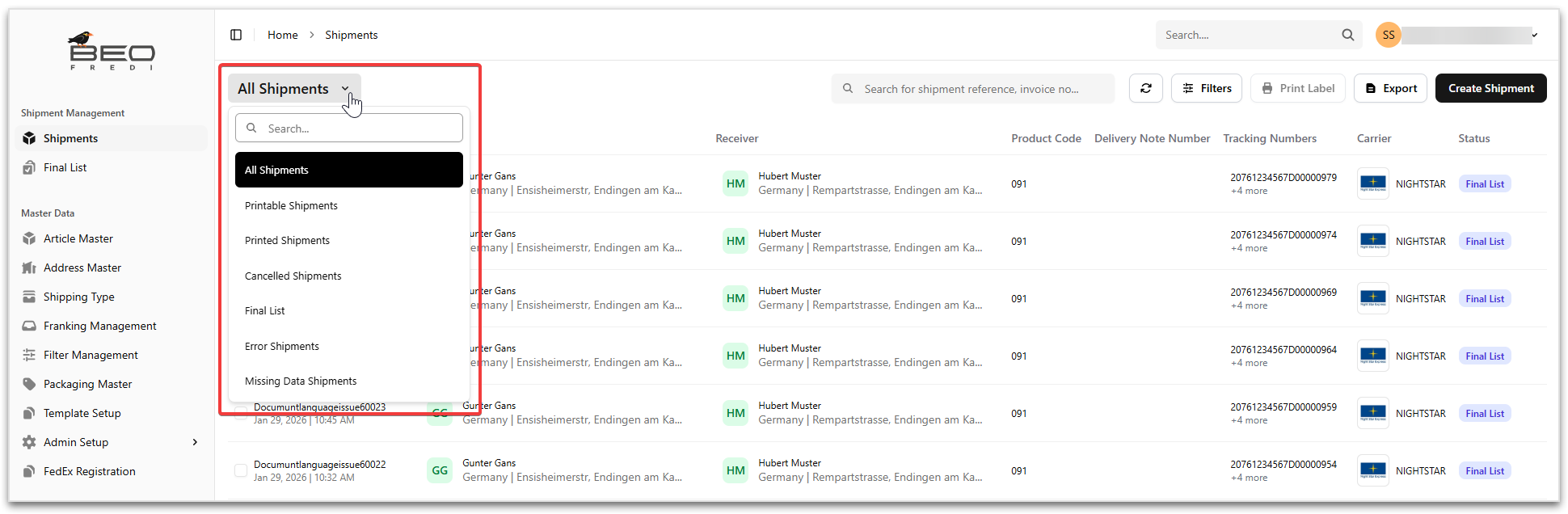
The Shipments page displays All Shipments by default. Use the All Shipments drop-down to switch between available shipment views. These views help to quickly focus on shipments requiring action.
| View | Description |
|---|---|
| All Shipments | Displays all shipments regardless of status. |
| Printable Shipments | Displays shipments ready for label printing. |
| Printed Shipments | Displays shipments for which labels have already been printed. |
| Cancelled Shipments | Displays shipments that have been cancelled. |
| Final List | Displays shipments that have been moved to the Final List. |
| Error Shipments | Displays shipments with processing or validation errors. |
| Missing Data Shipments | Displays shipments with incomplete or missing required information. |
Shipment Statuses
The Status coulmn of the Shipments list indicates the current stage of the shipment lifecycle.
| Status | Description |
|---|---|
Printable |
The shipment contains all required information and is ready for label generation. |
Printed |
The shipping label has been successfully generated and printed. |
Final List |
The shipment has been finalized and included in the Final List for processing and documentation. |
Missing Data |
The shipment is incomplete. One or more required fields are missing and must be filled before the shipment can be processed. |
Awaiting Docs |
The shipment is waiting for required documents before it can proceed. |
Cancelled |
The shipment has been cancelled and will not be processed further. |
Error |
The shipment contains errors that must be resolved before label generation or processing can continue. |
Note
Available statuses may vary based on system configuration!
Shipment Actions
Actions available for each shipment depend on its current status.
| Action | Description |
|---|---|
| Print Label | Generates and prints the shipping label. |
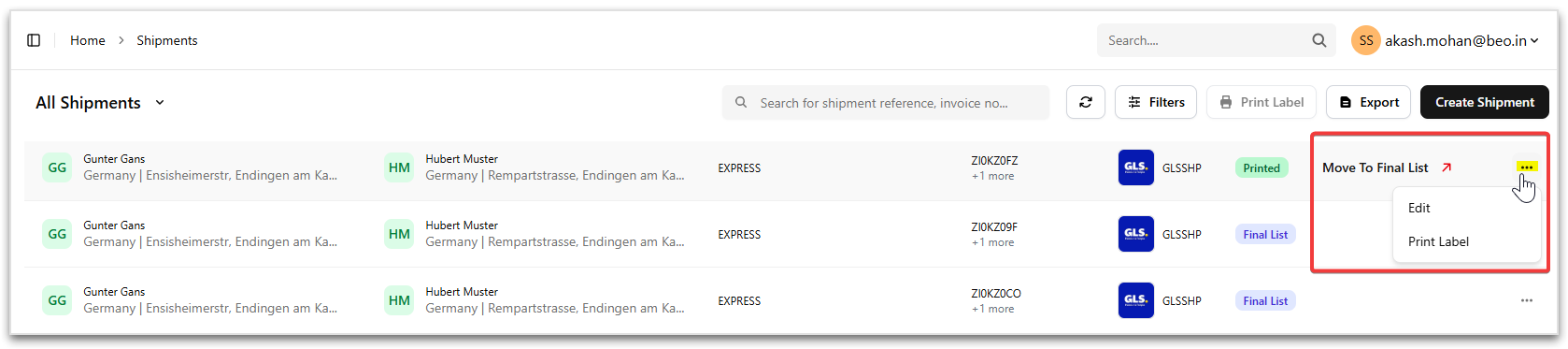
| Move to Final List | Finalizes the shipment and moves it to the Final List. |
| Remove from Final List | Removes the shipment from the Final List, if permitted. |
| View Details | Displays the detail view of the shipment. |
| Edit | Allows editing shipment details before finalization. To edit a shipment, click the context menu (⋯) of the selected row and select the Edit action. |
| Delete Shipment | Deletes the shipment. To delete a shipment, select the row and click the Delete Shipment action. |
Best Practices
- Regularly monitor Missing Data and Error Shipments views
- Print labels only after verifying shipment details
- Move shipments to the Final List only when they are ready for dispatch
- Use predefined views to manage large shipment volumes efficiently